One bank bonus is easy to keep in your head. Three at once, each with its own deposit rules, deadlines, and fees, is where things slip. Most people start with a spreadsheet, and it works until the day a deadline passes because nobody opened the sheet that week.
This guide walks through tracking bonuses in BonusLedger, the iPhone, iPad, and Mac app we built for exactly this. It takes a few minutes per account, and after that the app does the remembering. BonusLedger never connects to your bank: you enter the terms and log what you do, and your records stay on your device (or sync between your own devices through your private iCloud account, if you turn that on).
Before you start: save the terms
Have the offer’s terms in front of you before you add the account: the requirements, the deadlines, when the bonus pays, and any fees for monthly service or early closure. Take a screenshot of the offer page too. You’ll use it in step 2, and offer pages have a habit of changing.
Step 1: Add a player for each person
A player is a household member. Every account belongs to one, which keeps each person’s bonuses, totals, and eligibility separate while the Dashboard shows everything together. Add yourself from the Players tab, or tap Add New Player while creating your first account. If a partner runs the same offers a few months after you, give them a player of their own.
Step 2: Add the account
On the Dashboard, tap + and choose Add Account. A four-step form walks you through it, and the first step is the quickest win: tap Scan Offer Screenshot and pick the screenshot you saved. BonusLedger reads it on your device using Apple’s Vision framework and pre-fills the bank, the bonus, the requirements, and fee terms it finds. Nothing is uploaded. Check what it filled in against the terms before you continue.
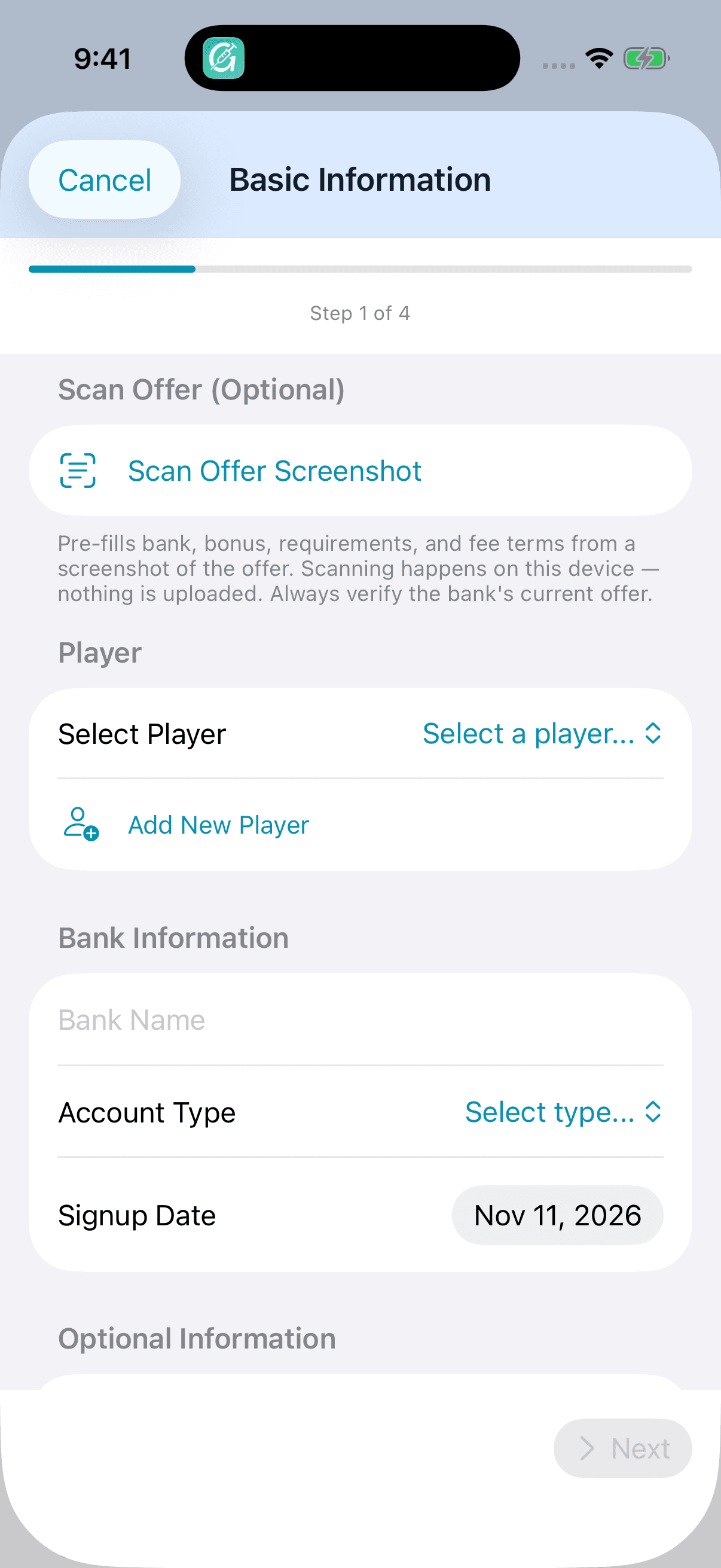
Then choose the player, enter the bank name and account type, and set the signup date to the day you opened the account. Many deadlines count from that date, so it’s worth getting right.
Step 3: Model each requirement the way the bank wrote it
On the Requirements step, add one requirement for each condition in the terms. There are five types:
- Direct Deposit: a minimum per deposit or a total amount, the number of deposits, the months needed, whether those months must be consecutive, and your pay cadence.
- Balance Hold: the balance to reach, the deadline to deposit it, and how long to hold it.
- Debit Transactions: how many purchases, with an optional minimum per purchase.
- Initial Funding: the opening deposit.
- Custom: anything else, such as enrolling in e-statements.
Not sure how your bank defines a direct deposit? See what counts as a direct deposit for a bank bonus.
Step 4: Add the bonus and the closing terms
On Bonus Details, enter the expected amount and when the bank says it will pay: a number of days after signup, or after the requirements are met. BonusLedger turns that into a target date and reminds you as it gets close.
On the same step, open Fees & Closing and enter how long the account must stay open, the early closure fee, and any monthly fee. The account will then show a Keep Open Until date and remind you when it’s safe to close. Our guide to early account closure fees explains why this one matters.
Review the summary on the last step and tap Create Account.
Step 5: Log activity as it happens
Progress comes from what you log, not from a box you remember to tick. When a paycheck lands or you make a qualifying purchase, tap + on the Dashboard and choose Log DD (direct deposit), Log Debit, or Log Bonus Paid, then pick the account and enter the date and amount. Each requirement updates from the events linked to it.
Two habits help. Log deposits the day you see them, while the amounts are in front of you. And if the bank charges a fee, log it as a Fee Charged event, so the account shows its real net bonus.
Step 6: Let reminders and the Dashboard do the remembering
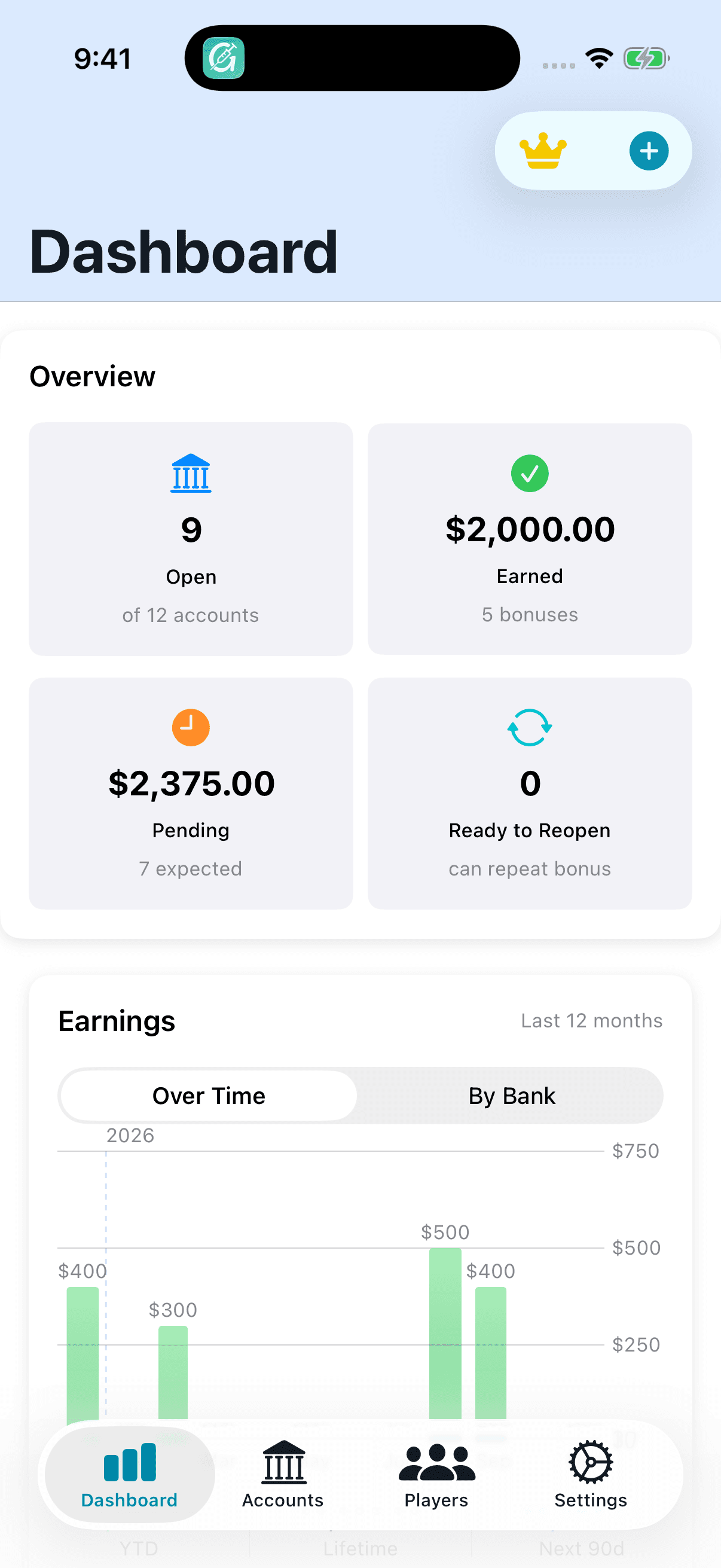
BonusLedger creates reminders for bonus deadlines, the end of balance holds, safe-to-close dates, and reopening eligibility. They’re ranked by urgency, so the ones that matter get scheduled first even when you track a lot of accounts. The Dashboard’s Due Soon list shows what needs attention across every account and player, and you can tap an item to log the activity straight from it.
Step 7: Close out the bonus
When the bonus posts, log it as paid. When the keep-open period is over, close the account in the app with its close date and, if you might open it again, the bank’s waiting period. BonusLedger will show when the account becomes eligible again. Save the offer terms, statements, and the year’s 1099 to the account as encrypted documents so they’re there at tax time.
Moving over from a spreadsheet
If you already track bonuses in a spreadsheet, you don’t have to retype it. Go to Settings › Data Import & Export › Import, download the template, and map your columns. Every row is checked before anything is saved.
BonusLedger is free for your first account, with up to 2 players. A one-time $14.99 purchase unlocks unlimited accounts and players on iPhone, iPad, and Mac. See pricing for the details, or every feature.
Frequently asked questions
Do I need to link my bank account to track a bonus in BonusLedger?
No. BonusLedger never connects to your bank. You enter the offer's terms and log deposits and purchases yourself, and the app works out your progress from what you log.
Can I track bonuses for my partner too?
Yes. Create a player for each household member and assign each account to the person who opened it. The free version includes up to two players.
Is BonusLedger free?
The free version tracks one account. A one-time $14.99 Premium purchase unlocks unlimited accounts and players on iPhone, iPad, and Mac.
This article is general information, not financial, tax, or legal advice. Bank offers and their terms change often and differ between banks, so always read the current terms from your bank, and talk to a tax professional about your own situation. BonusLedger is not affiliated with, endorsed by, or paid by any bank or financial institution mentioned on this site.